Git and GitHub
1 Introduction
When working on coding projects, it is good practice to keep track of different versions of your work. This is actually very important for monitoring progress, identifying bugs, and check previous versions when needed. Git and GitHub are widely used tools for version control.
Git is a local version control system that tracks changes in your files and allows you to commit, revert, and manage different versions of a project; while GitHub is an online platform that hosts Git repositories and provides a remote location for backing up and sharing your code. In practice, you use Git on your local computer to record changes, and use GitHub to synchronize those changes and collaborate with others.
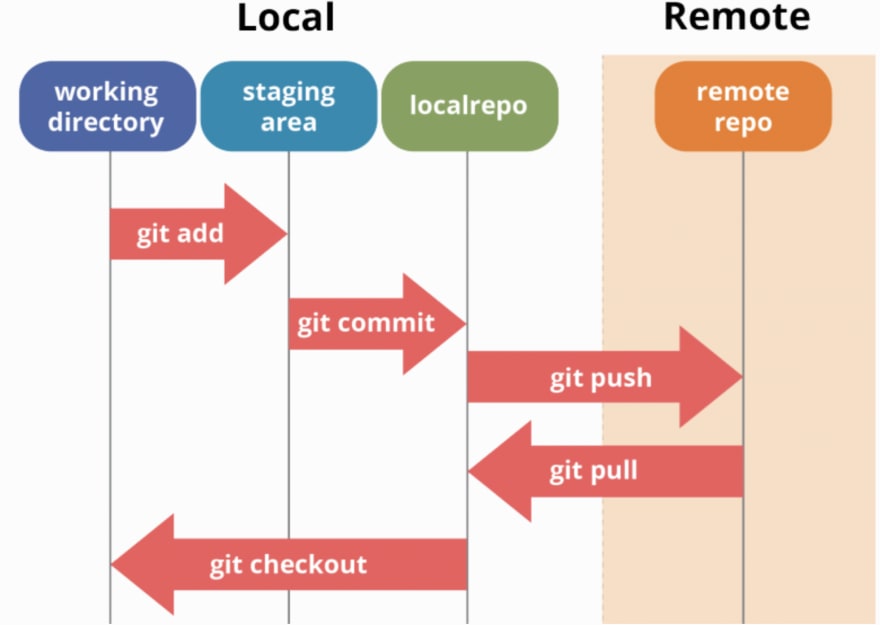
2 Basic workflow
2.1 Configure Git
Configure Git by running the following commands in the terminal
git config --global user.name "John Smith"
git config --global user.email "johnsmith@gmail.com"
git config --global credential.helper "store --file ~/.git-credentials"
Git will save the credentials in the location you assign (i.e., "~/.git-credentials").
You can check the configured information by running one of the following commands:
git config --global --list
git config --global user.name
git config --global user.email
2.2 Create an repository on GitHub
Create a repository on GitHub to host your project and enable version control. This repository will serve as a central location for storing the code, tracking changes, and maybe collaborating with others. I would set most of my ongoing projects to private repositories before done.
2.3 Clone the repo to local
git clone https://github.com/xiuyucao/xiuyucao.github.io.git
Some useful Unix-style terminal commands commonly used on macOS:
pwd–> print working directorycd location/directory–> change working directoryls–> list the files of the working directoryls -a–> show all (include hidden files)
2.4 Work in your working directory
cdinto your working directory- working directory setup
- set
.gitignoreto ignore files you do not want to do version control - I recommend organizing in the structure of
scripts/anddata/
- set
2.5 Git
git status -s–> check the statusgit diff [file]–> check what is changedgit add [file]–> add the file to the staging areagit add .–> add all the filesgit reset <file>–> remove the added file from the stage
git commit -m "[commit message]"–> commit the change to Gitgit log–> show all the history Git commitsgit log --oneline
2.6 Push commits to remote
Use git push to push the commits to the remote repository on GitHub.
3 Branches
To better organize the project, it is good practice to use branches. The main (some places called master) branch is the stable version of the code. We do not want to try new feature on this branch. That’s why we need another branch. The basic idea is we create a branch which is an isolated developing environment and try new features we like. If satisfying, we merge the branch. This is also very helpful when 2 developers working on the project at the same time.
- Check branches:
git branchgit branch -a- show all branches including remote ones
- Create a branch:
git branch branch1 - Switch to a branch:
git checkout branch1- or can create and switch at the same time:
git checkout -b branch1
- or can create and switch at the same time:
- Merging branches
- First switch to the branch we want to merge other branhes into
git merge branch1
- Delete a branch: first switch to another branch, then:
git branch -d branch1- for merged branchesgit branch -D branch1- regardless of the merge status
4 Other useful commands
git reset --hard HEAD–> resets the current branch to the latest commit (HEAD)